✅ Tested on iOS 26
Instagram has over 2 billion monthly active users (Meta, 2026), and the average person spends roughly 30 minutes a day scrolling through it (DataReportal, 2026). That's not an accident. The app is engineered to hold your attention.
"Social media platforms are designed using the same neural circuitry used by slot machines and cocaine," explains Dr. Anna Lembke, Stanford psychiatrist and author of Dopamine Nation. "The algorithms learn what captures your attention and serve you more of it, creating a feedback loop that's difficult to escape."
If you're here, you've probably decided that 30 minutes (or more) isn't how you want to spend your time. Maybe you need to focus on work. Maybe you're helping your kid build healthier habits. Either way, you don't need a lecture on screen time. You need a method that works.
Here are 10 ways to block Instagram on your iPhone, from a quick Screen Time limit to DNS-level blocking and friction systems most guides don't cover. Or skip the piecemeal approach and try Blank Spaces, a minimalist launcher that makes distracting apps invisible by default.
The Quick Answer
Open Settings → Screen Time → App & Website Activity → App Limits → Add Limit. Select Instagram, set the timer to 1 minute, and toggle on Block at End of Limit. Then go back to Screen Time settings and tap Lock Screen Time Settings to set a passcode. Without that passcode, the limit is meaningless. You can tap right through it.
Which Method Is Right for You?
| Method | Best For |
|---|---|
| 1. Screen Time Limit | Quick self-blocking |
| 2. Block Website | Closing the Safari loophole |
| 3. Focus Mode | Hiding triggers during work |
| 4. Shortcuts Automation | Adding friction, not a hard block |
| 5. Blocking App | Cross-device blocking |
| 6. Parental Controls | Blocking for kids |
| 7. DNS Blocking | Invisible, network-level block |
| 8. MDM / Supervised Mode | Tamper-proof, non-negotiable |
| 9. Friction System | Layered approach that lasts |
Method 1: Set an App Limit with Screen Time
This is the built-in option Apple gives you, and it works well enough for most people.
- Open Settings → Screen Time
- Tap App & Website Activity → App Limits → Add Limit
- Select Social and check Instagram
- Set the time limit to 1 minute if you want an effective block, or a longer window for controlled access
- Toggle on Block at End of Limit
- Go back to Screen Time and tap Lock Screen Time Settings to set a passcode
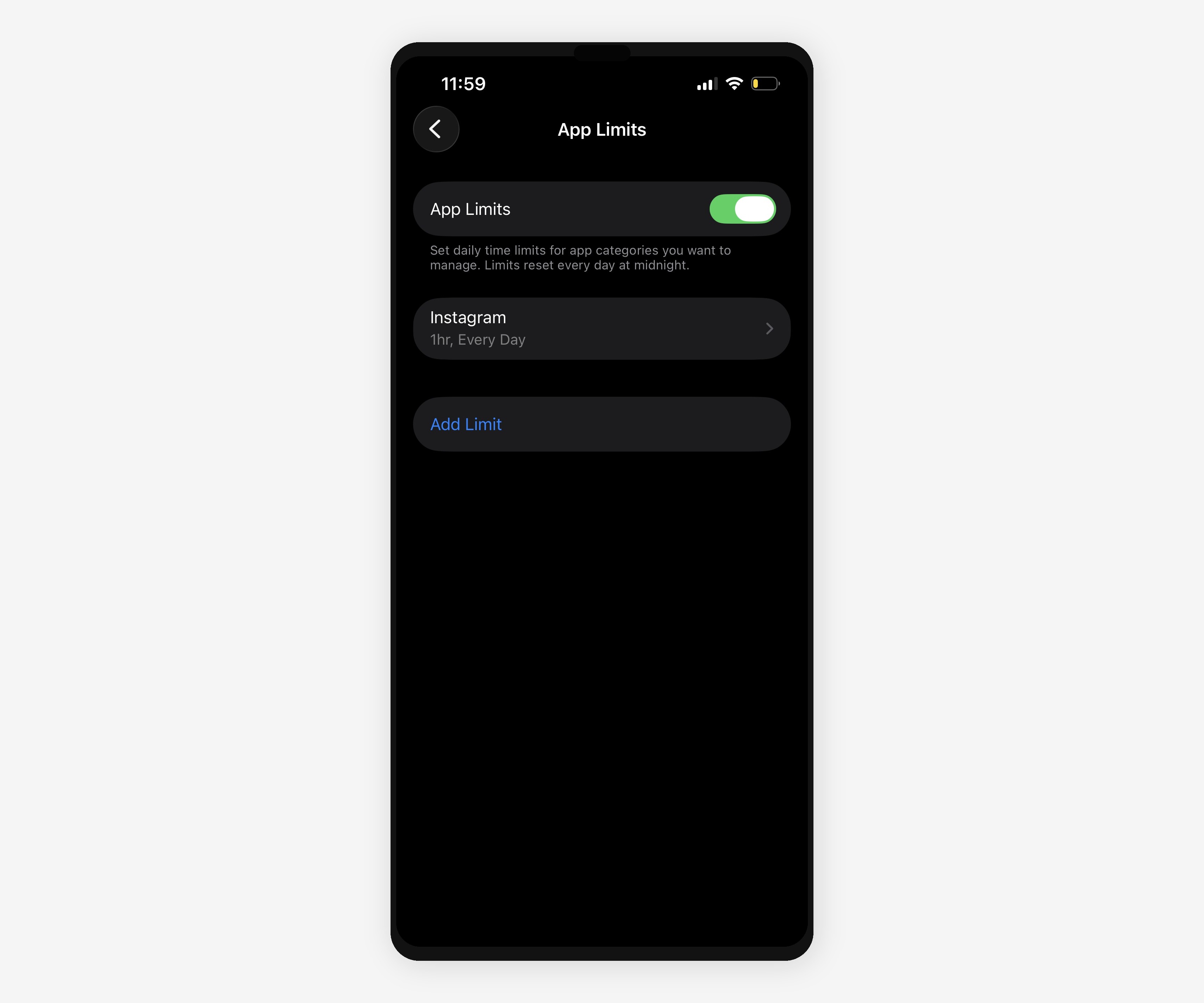
That last step is critical. Without a passcode, iOS shows an "Ignore Limit" button every time the block kicks in. One tap and you're back to scrolling. Set a passcode, and that bypass disappears behind a 4-digit wall.
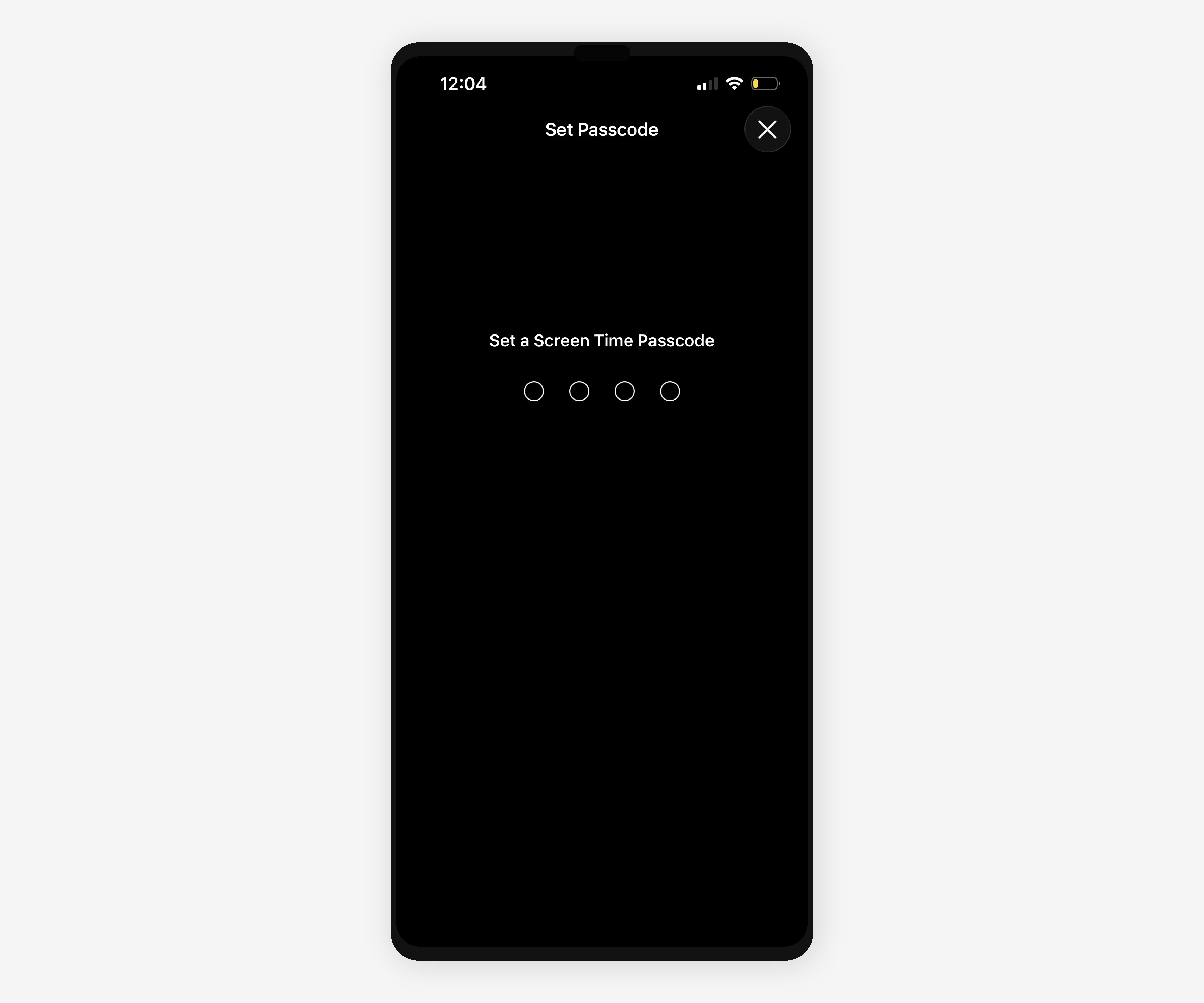
If you want real accountability, have someone else set the passcode for you. A partner, a friend, a roommate. Someone who won't hand it over the moment you ask.
Method 2: Block Instagram's Website in Safari and All Browsers
Here's what most guides skip: even after blocking the app, you can open Safari and go straight to instagram.com. The mobile website works well enough to keep you scrolling. Close the loophole.
- Open Settings → Screen Time
- Tap Content & Privacy Restrictions
- Tap App Store, Media, Web & Games → Web Content
- Select Limit Adult Websites
- Under Never Allow, tap Add Website and enter instagram.com
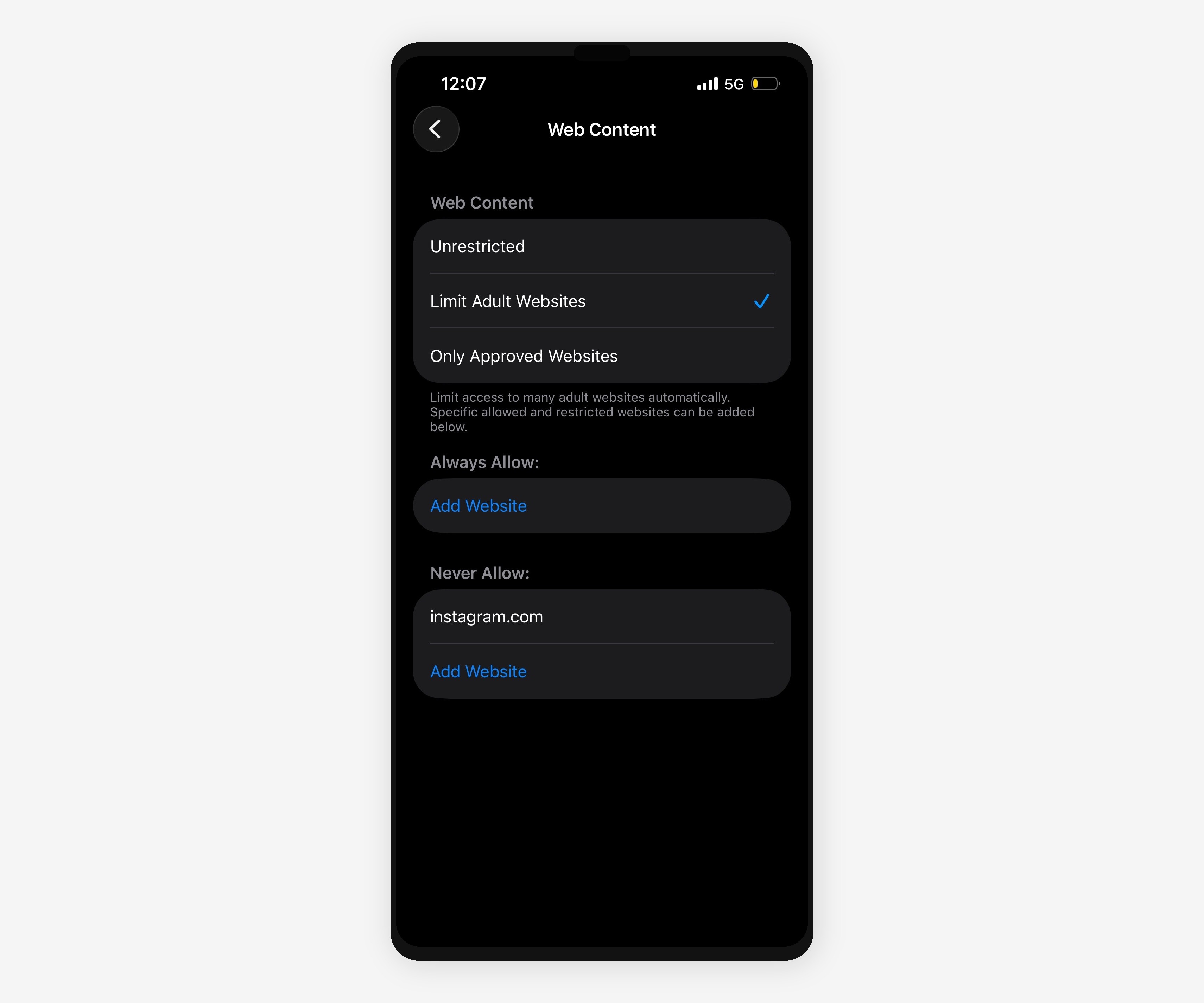
Now Instagram is blocked in Safari, Chrome, and every other browser on your iPhone. The app is locked behind Screen Time, and the website is blocked at the system level. No backdoors.
Method 3: Use Focus Mode to Hide Instagram
Focus Mode is one of the most underused features on iPhone. Most people set up Do Not Disturb and stop there. But you can use it to make Instagram effectively invisible.
- Open Settings → Focus
- Tap the + to create a new Focus (e.g., "Deep Work")
- Under Customize Screens, choose a Home Screen page that doesn't include Instagram
- Under Notifications, make sure Instagram is not in the allowed list
- Optionally, turn off Instagram notifications entirely: Settings → Instagram → Notifications → off
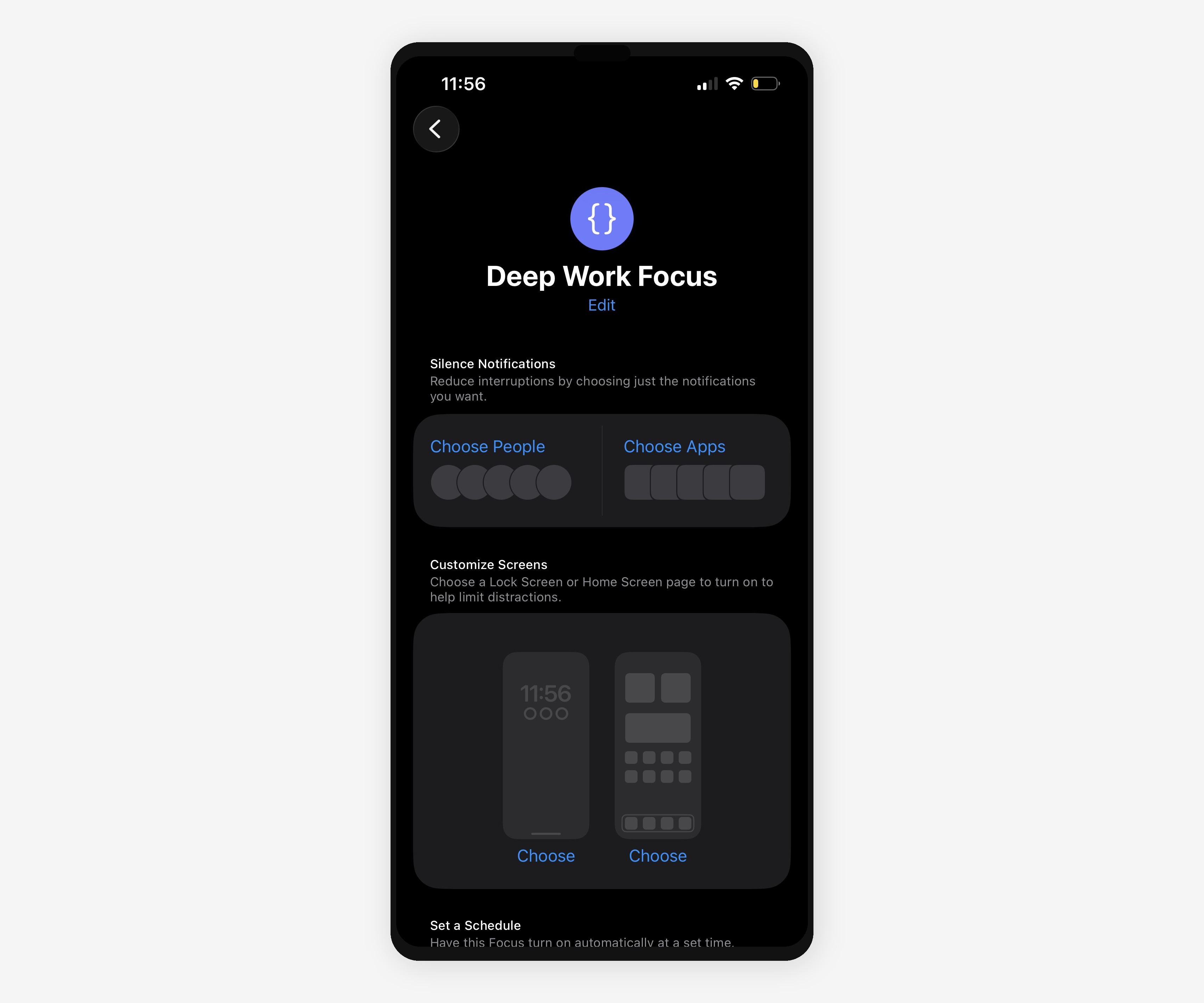
When your Focus activates, Instagram disappears from your Home Screen and stops sending notifications. It's still there if you search for it. Focus Mode hides, it doesn't hard-block. But removing the visual trigger is more powerful than most people expect. You don't open apps you can't see.
For the strongest setup, combine Focus Mode with Screen Time limits. Focus removes the temptation. Screen Time catches you if you go looking for it anyway.
Method 4: Create a Shortcuts Automation
This one is genuinely underused. The Shortcuts app lets you create an automation that fires every time you open Instagram, before the app even loads.
- Open the Shortcuts app
- Tap Automation → New Automation
- Select App, choose Instagram, and set it to trigger when the app Is Opened
- Choose Run Immediately (or Run After Confirmation if you want a manual check)
- Add an action: Open App (redirect to a different app), Start Timer, or Speak Text with a reminder
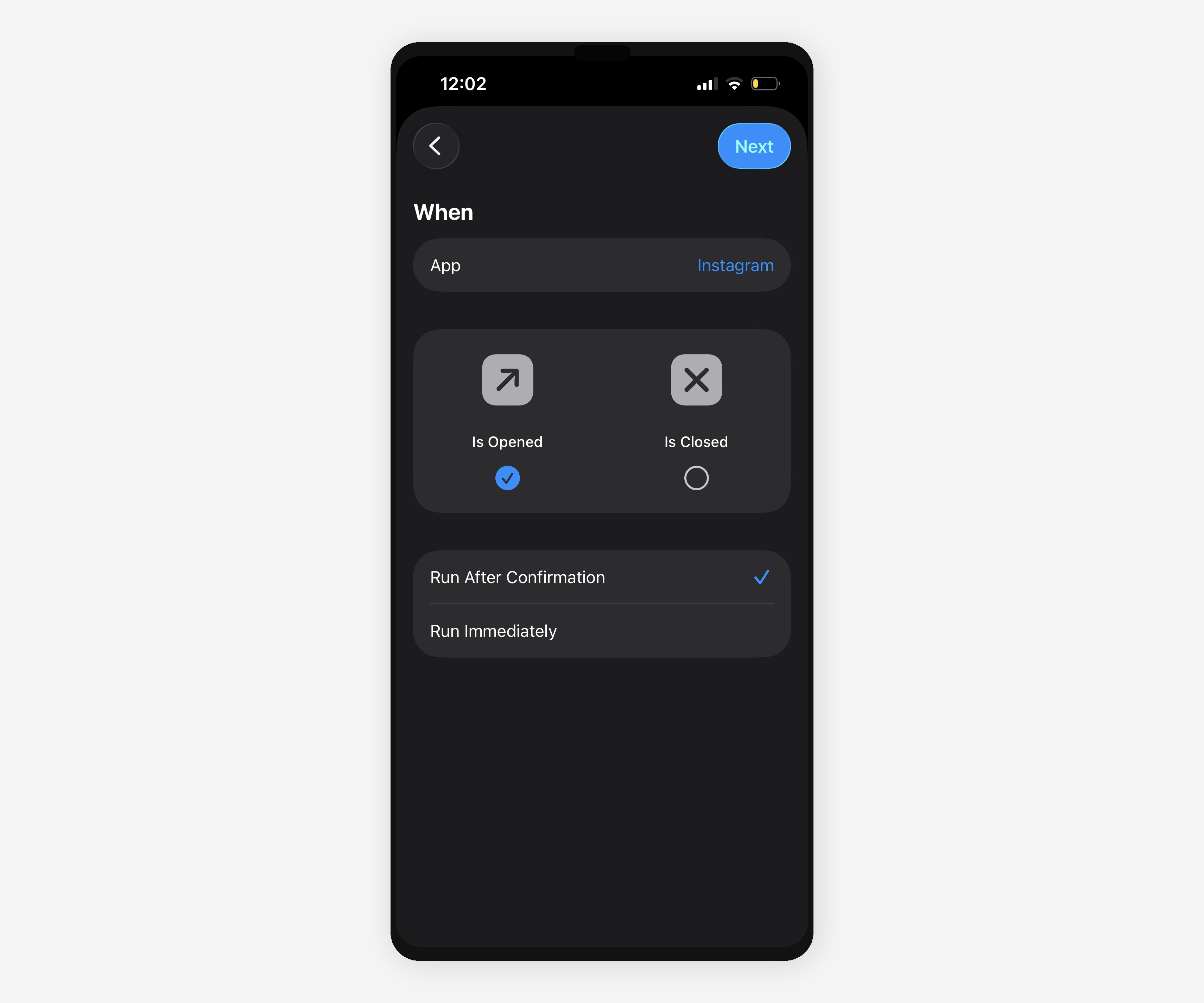
This doesn't block Instagram outright. What it does is insert a moment of friction: a conscious pause between the impulse and the scroll. You open the app, the automation fires, and you have to make a deliberate choice to continue.
That friction matters more than you'd think. Most Instagram opens are reflexive, not intentional. Even a brief pause (a redirect, a timer, a spoken reminder) is enough to break the autopilot loop.
Method 5: Use a Blocking App
If you want something more robust than what Apple provides, or you need blocking that syncs across devices, a third-party app can fill the gap. Here are the ones worth knowing about:
- one sec: adds a breathing exercise before opening Instagram. Good for building awareness of reflexive opens.
- Opal: blocks apps on a schedule with a "deep focus" mode. Can sync across iPhone and Mac.
- Freedom: blocks apps and websites across all your devices (iPhone, Mac, Windows, Android). Best for cross-platform blocking.
- ScreenZen: similar to one sec but with more customization options for the intervention screen.
- Blank Spaces: replaces your Home Screen with a minimal, distraction-free layout. Instead of blocking apps outright, it removes the visual triggers that pull you in. Instagram is still accessible, just no longer front and center.
No single app works for everyone. one sec and ScreenZen are good for building awareness. Opal and Freedom are better if you need enforced blocks. The right choice depends on whether you're trying to build a habit or break an addiction.
Method 6: Block Instagram for Your Child (Parental Controls)
If you're setting this up for a kid, the approach is different. You need blocks they can't undo. Ideally, you want to permanently block Instagram so there's no way around it.
- Open Settings → Screen Time (or set up Family Sharing to manage remotely)
- Set an App Limit for Instagram with 1 minute and Block at End of Limit
- Go to Content & Privacy Restrictions → App Store, Media, Web & Games → Web Content and add instagram.com to Never Allow
- Under Content & Privacy Restrictions, disable Installing Apps to prevent re-downloading
- Set a Screen Time passcode that your child doesn't know
The key difference with parental controls: you hold the passcode, not them. Don't share it, don't use something guessable, and don't store it in a note on the family iPad.
Method 7: Block Instagram at the DNS Level
This is the method most guides don't mention, and it's one of the hardest to bypass.
DNS blocking works at the network level. When Instagram tries to connect to its servers, the DNS provider intercepts the request and blocks it. The app can't load. The website can't load. It doesn't matter which browser you use or whether you reinstall the app. If the DNS says no, nothing gets through.
- Sign up for a DNS filtering service like NextDNS or AdGuard DNS
- In the service dashboard, add instagram.com and cdninstagram.com to your blocklist
- On your iPhone, go to Settings → Wi-Fi → your network → Configure DNS → Manual
- Replace the DNS servers with the ones from your filtering service
- For cellular coverage, install the provider's configuration profile (NextDNS and AdGuard both offer this)
The strength of DNS blocking is that it's invisible to the user. There's no popup, no "Ignore Limit" button, no obvious setting to toggle off. Instagram simply fails to connect. Combined with Screen Time restrictions, this is one of the most effective setups available.
The tradeoff: it's more technical to configure, most good providers require a subscription, and if you set it at the router level instead of the device level, it affects every device on your network.
Method 8: MDM and Supervised Mode (The Nuclear Option)
If you need absolute, non-negotiable control, the kind a determined teenager can't work around, this is it.
Apple's Supervised Mode, configured through Apple Configurator on a Mac, gives you control over an iPhone that goes far beyond Screen Time. MDM (Mobile Device Management) profiles can completely remove apps, prevent reinstallation, permanently block websites on iPhone, disable entire features, and lock settings so they can't be changed on the device.
This is the same technology schools and businesses use to manage thousands of devices. For parents who've tried everything else and need a way to permanently block an app on iPhone, it's the last resort. Setup requires a Mac and some patience with Apple Configurator, but once configured, the restrictions are effectively tamper-proof from the device itself.
Why Willpower Fails (and What Works Instead)
Here's the uncomfortable truth: every time you "just try harder" to stay off Instagram, you're fighting a losing battle.
Willpower is finite. Instagram's engineering team? Unlimited resources. Their entire job is making the app as hard to put down as possible. You're one person with a to-do list. They're hundreds of engineers and behavioral psychologists whose full-time job is holding your attention.
"We've created a world where the easiest thing to do is the thing that's worst for us," says Cal Newport, computer science professor and author of Digital Minimalism. "The solution isn't more willpower. It's better design. Make the things you want to do easier than the things you want to avoid."
The math doesn't work in your favor.
Intentional design does. Stop fighting yourself. Start designing an environment where the right choice is the easy choice. Remove the triggers. Add friction to the things you don't want to do. Make the default the behavior you actually want.
That's what all of these methods are: tools for redesigning your digital environment so willpower isn't required. Blocking Instagram isn't weakness. It's recognizing that self-control alone is a strategy that fails eventually.
The strongest setup isn't one method. It's a system.
Method 9: Build a Friction System
A friction system combines multiple small barriers that, together, break the automatic behavior loop. None of these barriers need to be perfect. The goal isn't to make Instagram impossible to access. It's to make opening it a deliberate choice instead of a reflex.
Here's what a real friction system looks like:
- Set a 1-minute Screen Time limit with a passcode (Method 1)
- Block instagram.com in Content Restrictions (Method 2)
- Hide Instagram from your Home Screen with Focus Mode (Method 3)
- Add a Shortcuts automation that fires when you open it (Method 4)
- Have someone else set your Screen Time passcode so you can't override it
Each individual method has a workaround. Together, they create a system where the path of least resistance is not opening Instagram.
If you're designing this from scratch, Blank Spaces takes the friction system approach and applies it to your entire Home Screen. It replaces the grid of colorful app icons with a minimal, intentional layout. Instagram doesn't disappear. It's still there when you need it. But it stops being the first thing you see. The visual trigger is gone. The automatic open becomes a deliberate search.
That's the principle: design your defaults so the thing you want to do is easier than the thing you're trying to avoid. Friction works because it doesn't rely on discipline. It relies on laziness, and that's a resource that never runs out.
FAQ
Can I block Instagram without deleting it?
Yes. Every method in this guide blocks or restricts Instagram while keeping it installed. Screen Time limits, Focus Mode, and Content Restrictions all work without deleting the app.
How do I block Instagram on my child's iPhone?
Use Screen Time with a parental passcode (Method 6). Set an App Limit for Instagram, block the website through Content & Privacy Restrictions, and disable app installation to prevent re-downloading.
Can I block Instagram at certain times only?
Yes. Screen Time App Limits can be customized by day of the week. Focus Mode can be scheduled by time or location. And Shortcuts automations can be set to run only during specific time windows.
Does blocking Instagram also block Threads?
No. Instagram and Threads are separate apps. You'll need to set up separate limits and restrictions for each one. If your goal is to block Meta's social apps entirely, add Threads and Facebook to your Screen Time limits and website blocks too.
Can you permanently block Instagram on iPhone?
Yes. Use Content & Privacy Restrictions to block the website, delete the app, and disable app installation to prevent re-downloading. Add DNS blocking (Method 7) on top, and Instagram is effectively gone for good, unless someone with the passcode or DNS credentials reverses it.
How to block Instagram on my child's phone without them knowing?
Set a Screen Time passcode remotely through Family Sharing. Your child won't see the configuration happen. DNS blocking (Method 7) is even more invisible: Instagram simply stops loading with no on-screen explanation. There's no popup or setting for them to find and disable.
Does blocking Instagram delete your account?
No. Blocking, deleting, or restricting the Instagram app on your iPhone has no effect on your Instagram account. Your profile, posts, followers, and DMs all stay intact on Instagram's servers. The block only affects your access from that device.
How to block Instagram Reels only?
Instagram doesn't offer a way to block Reels while keeping the rest of the app. Your best workarounds: set a short daily time limit through Screen Time so you can check messages but not fall into the Reels feed, or create a Shortcuts automation (Method 4) that fires a reminder after you've been in the app for a set number of minutes.
Can you block Instagram but keep Messenger?
Facebook Messenger and Instagram are separate apps. Blocking Instagram doesn't touch Messenger. However, Instagram's built-in DMs will be blocked along with the rest of the app. There's no way to access Instagram DMs while blocking the feed. If DMs are important, tell people to reach you on Messenger or another platform instead.
How to block Instagram at night only?
Two options. Screen Time Downtime lets you set a nightly schedule where only apps you explicitly allow will work. Everything else, including Instagram, is locked. Alternatively, schedule a Focus Mode for nighttime hours that hides Instagram from your Home Screen and silences its notifications. Both can run on a daily schedule without any manual effort.
The best approach isn't picking one method. It's layering several. Screen Time for the hard limit. Website blocking for the loopholes. Focus Mode for the visual triggers. Shortcuts for the friction. The goal isn't to fight your willpower every day. It's to set up your phone so willpower isn't required. That's what happens when you design your digital life instead of fighting it. Try Blank Spaces free and start with a Home Screen that works for you, not against you.