✅ Tested on iOS 26
The average person opens YouTube 11 times per day (AppAnnie, 2025). Most sessions start with "just one video" and end 40 minutes later in a recommendations black hole. The app isn't built for moderation. It's built for maximum watch time.
"YouTube's recommendation algorithm is optimized for one thing: keeping you watching," explains Guillaume Chaslot, former YouTube engineer and founder of AlgoTransparency. "The longer you stay, the more ads they can show. Every design choice serves that goal."
Here are 10 ways to block YouTube on iPhone, iPad, and Safari (from simple app limits to complete DNS-level blocking). Each method has different strengths. Some are easy to bypass. Others require a password you don't know.
Or skip the blockers entirely. Blank Spaces replaces your feeds with calm tools (timers, notes, quotes) so you never need to fight your impulses in the first place.
Quick Answer
The fastest way to block YouTube on iPhone is through Screen Time. Go to Settings > Screen Time > App Limits, tap Add Limit, select Entertainment (or search for YouTube), and set your daily limit to 1 minute. When time runs out, the app grays out. You can bypass it with a passcode, but the friction is usually enough.
Which Method Is Right for You?
| Method | Best For |
|---|---|
| 1. Screen Time App Limit | Quick self-blocking with minor friction |
| 2. Block Website in Safari | Closing the browser loophole |
| 3. Focus Mode | Hiding visual triggers temporarily |
| 4. Shortcuts Automation | Custom friction before opening |
| 5. Blocking App | Advanced features and scheduled blocking |
| 6. Restricted Mode | Filtering mature content (not blocking access) |
| 7. Parental Controls | Blocking for kids with family sharing |
| 8. DNS Blocking | Network-wide blocking (all devices) |
| 9. MDM / Supervised Mode | Institutional or high-commitment scenarios |
| 10. Friction System | Layered approach that lasts |
Method 1: Set a Screen Time App Limit
App Limits are Apple's built-in usage controls. You set a daily time budget for YouTube. When it expires, the app icon grays out and shows a time-limit screen. You can override it with a passcode, but most people don't. The friction is enough.
This works the same on iPad.
- Open Settings and tap Screen Time.
- Tap App Limits, then Add Limit.
- Search for YouTube or select the Entertainment category.
- Set the time limit to 1 minute (or whatever you allow).
- Tap Add in the top-right corner.
- (Optional) Enable Block at End of Limit to prevent "one more minute" extensions.
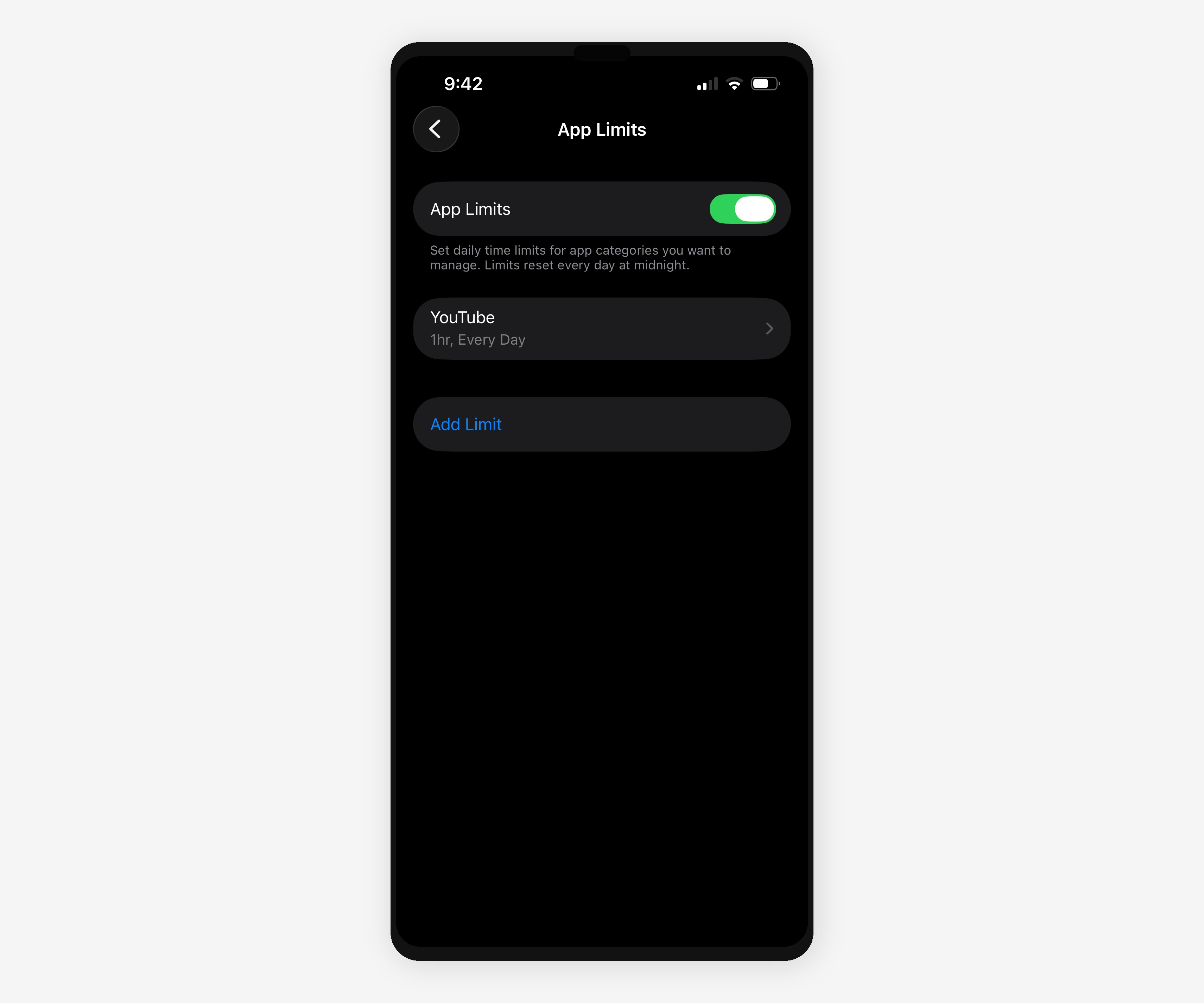
Tradeoff: Easy to set up, easy to bypass. If you know the Screen Time passcode (or don't have one set), you can ignore the limit with one tap. Best for people who respond to gentle nudges.
Method 2: Block YouTube's Website in Safari and All Browsers
Deleting the YouTube app doesn't solve the problem. Most people just open Safari and go to youtube.com or m.youtube.com. You need to block the website too.
Apple's Content Restrictions let you block specific domains across all browsers (Safari, Chrome, Firefox, etc.). This method closes the mobile web loophole.
- Open Settings and tap Screen Time.
- Tap Content & Privacy Restrictions, then App Store, Media, Web & Games.
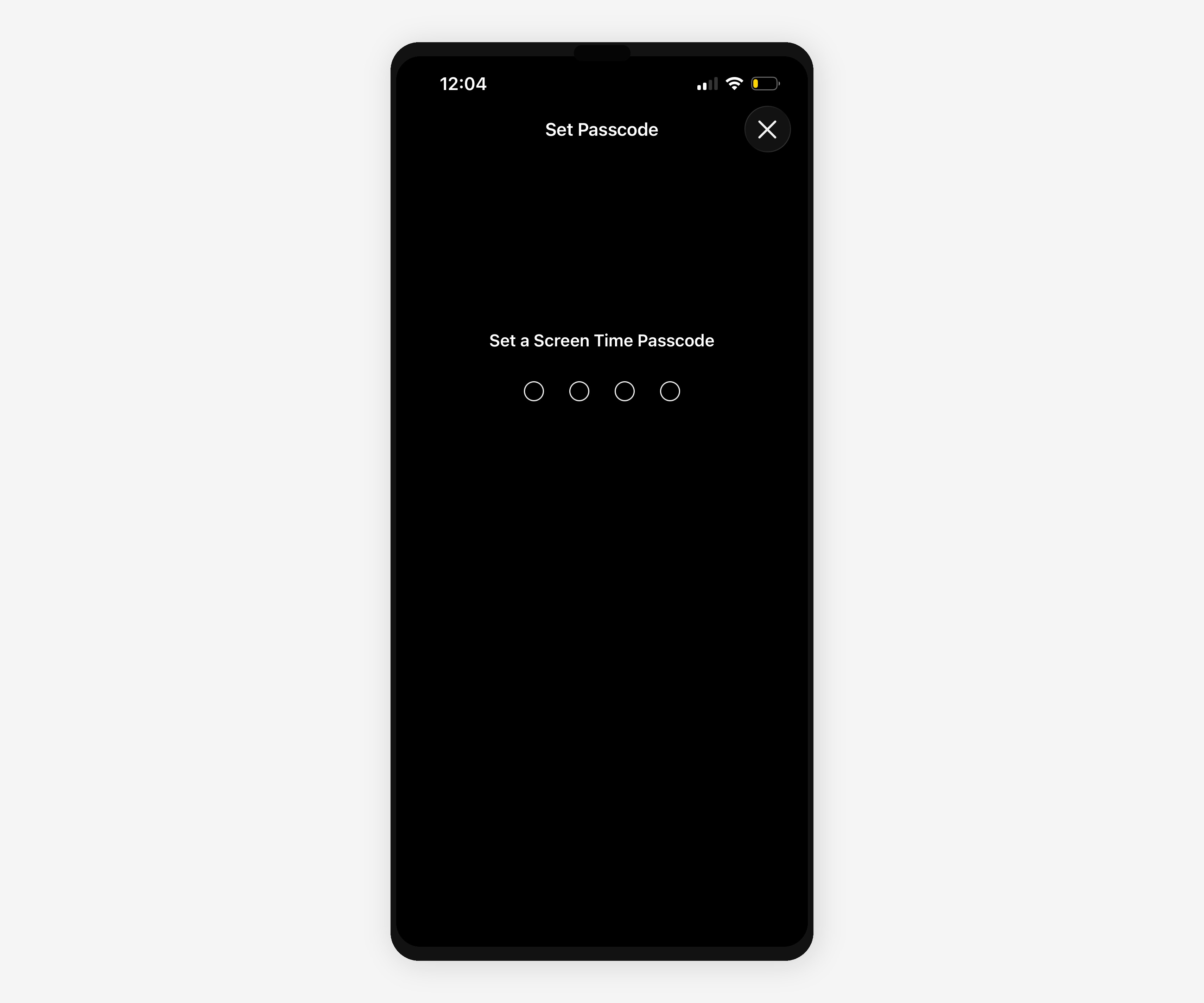
- If prompted, set a Screen Time passcode (use a password you'll forget or have someone else set it).
- Tap Web Content.
- Select Limit Adult Websites.
- Under Never Allow, tap Add Website.
- Add these domains one at a time:
- youtube.com
- m.youtube.com
- youtu.be
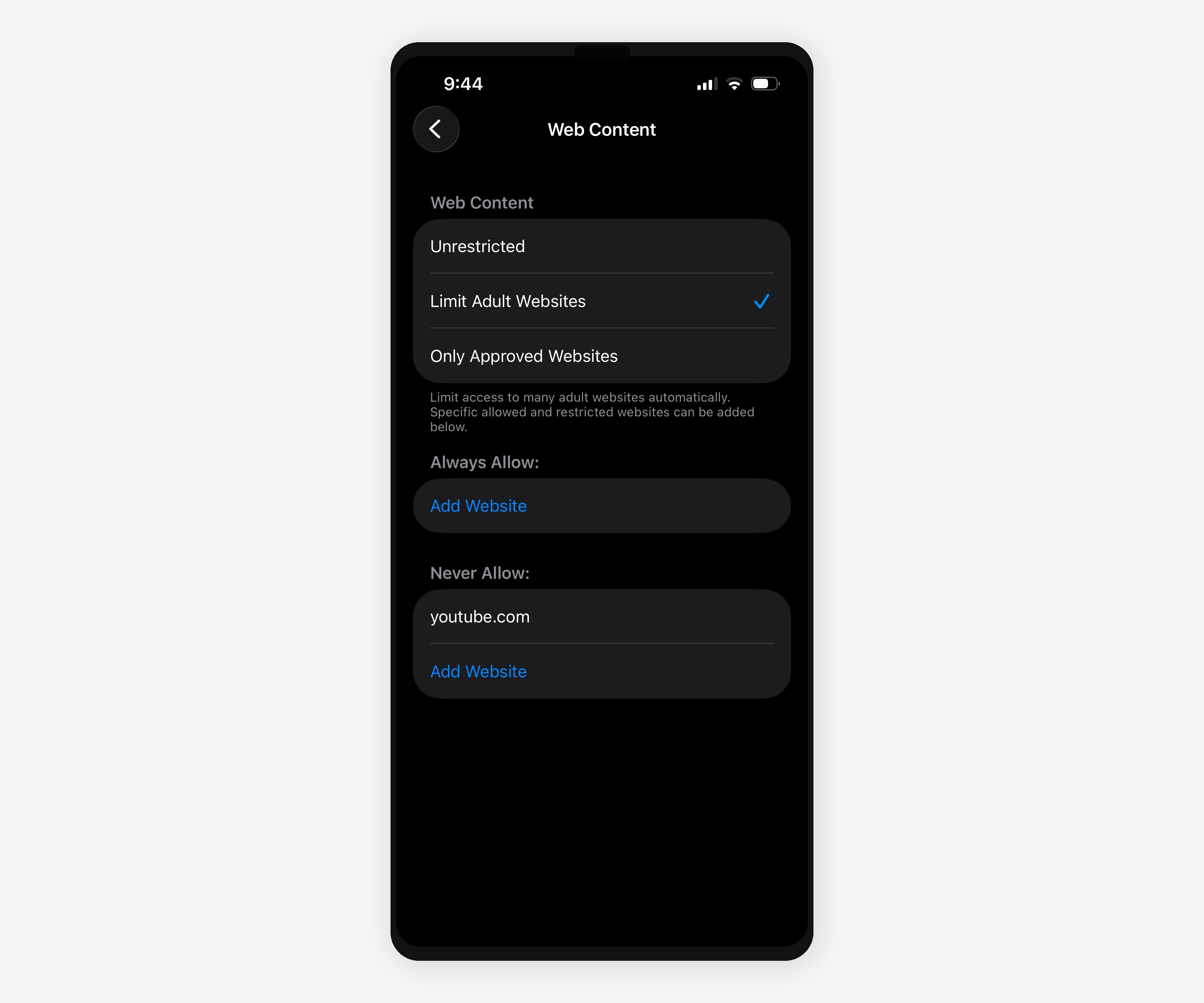
Now when you try to visit YouTube in any browser, iOS shows a "Restricted" message.
Tradeoff: Blocks browser access but not the YouTube app. Pair this with Method 1 or delete the app entirely. Also note: this doesn't block YouTube Kids (see Method 7).
Method 3: Use Focus Mode to Hide YouTube
Focus modes let you hide apps from your home screen without deleting them. Out of sight, out of mind. The app still works if you search for it in Spotlight, but the visual trigger is gone.
This is useful if you want YouTube available for specific situations (like playing music in the car) but don't want to see it during work or evenings.
- Open Settings and tap Focus.
- Tap an existing Focus (like Work or Personal) or create a new one with the + button.
- Tap Customize Screens (or Home Screen on some iOS versions).
- Toggle on Hide Notification Badges.
- Choose which home screen pages to show. Create a "clean" page without YouTube.
- Activate the Focus mode manually or set it to auto-enable during certain times or locations.
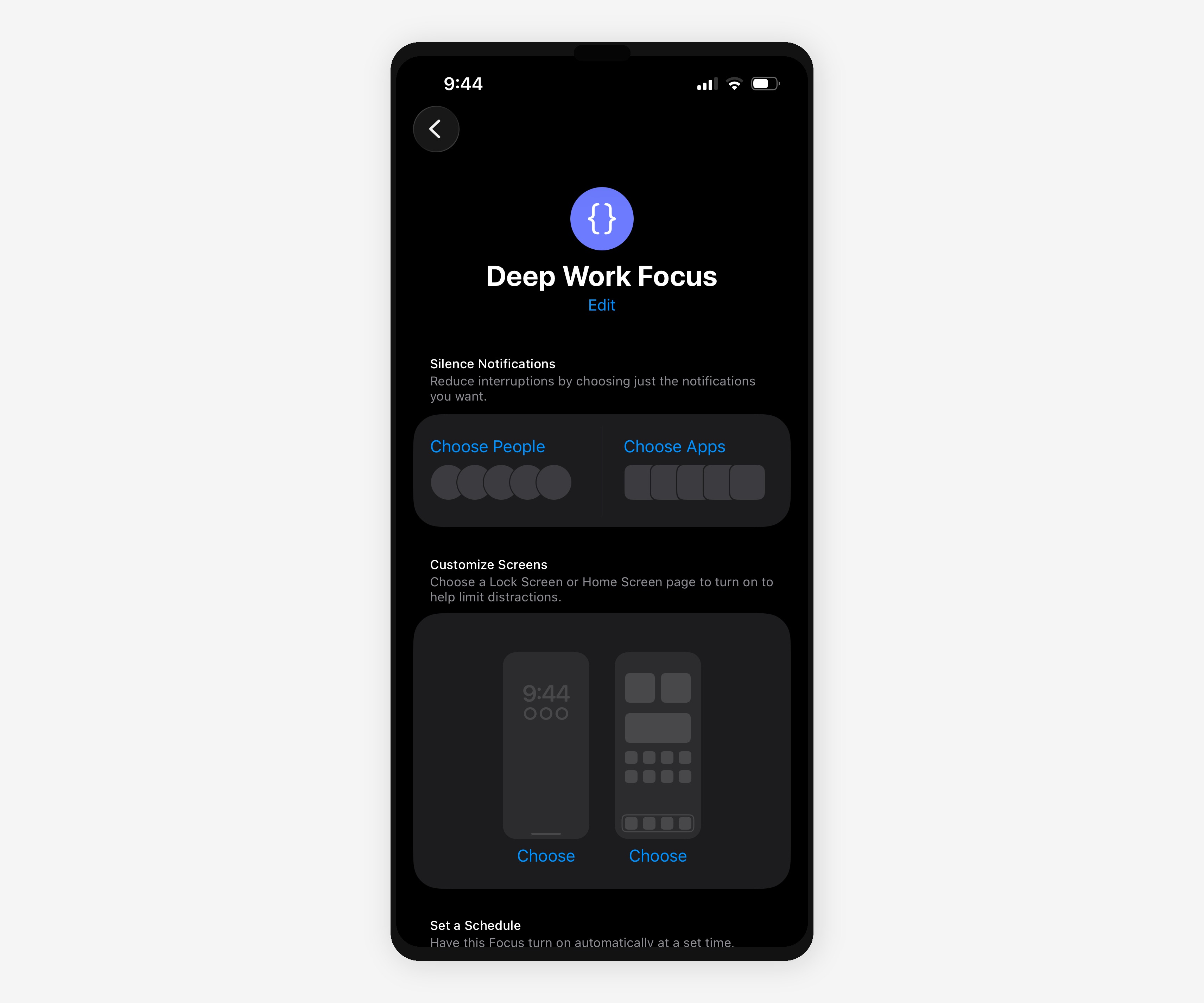
For full app hiding (not just home screen removal), use the App Library filtering options in Screen Time's "Allowed Apps" settings.
Tradeoff: YouTube is hidden, not blocked. You can still open it via Spotlight search or Siri. Best for reducing ambient temptation, not enforcing hard limits.
Method 4: Create a Shortcuts Automation
Shortcuts can detect when you open YouTube and trigger an action: a reminder, a question, a delay, or even force-closing the app. It creates friction. You have to consciously decide to override it.
This method works for both the YouTube app and Safari.
- Open the Shortcuts app (built into iOS).
- Tap the Automation tab at the bottom.
- Tap + (or Create Personal Automation).
- Scroll down and select App.
- Tap Choose and select YouTube.
- Set the trigger to Is Opened.
- Tap Next, then Add Action.
- Search for Show Notification and select it.
- Customize the message (e.g., "Do you really want to open YouTube right now?").
- Tap Next, disable Ask Before Running, and tap Done.

Advanced option: use the "Wait" action to add a 10-second delay before the app opens. Or use "Open App" to redirect to a different app (like Blank Spaces, Books, or Music).
Tradeoff: Adds friction but doesn't block access. The notification or delay makes you pause and reconsider. Some people find this annoying and disable the automation after a week.
Method 5: Use a Blocking App
Third-party apps offer more control than Screen Time. They can block apps on a schedule, track your unlocks, add custom friction (like breathing exercises or math problems), or lock you out completely until a timer expires.
"The key to managing compulsive app use isn't more willpower. It's better friction," notes Dr. Larry Rosen, psychology professor and author of The Distracted Mind. "Even small barriers can break automatic behavior patterns."
Popular options:
- one sec: Forces you to take a deep breath before opening YouTube. Works for YouTube Shorts too.
- Opal: Schedule-based blocking with focus sessions and daily limits.
- Freedom: Cross-platform blocking (iPhone, Mac, Windows). Blocks apps and websites simultaneously.
- ScreenZen: Adds breathing exercises and unlock delays before launching blocked apps.
- Blank Spaces: Replaces YouTube (and other social feeds) with a calm home screen of timers, notes, weather, and quotes. No blocking required. You just stop wanting to open it.
- Download your chosen app from the App Store.
- Follow the setup flow (most apps require Screen Time permissions).
- Add YouTube to your block list.
- Set your schedule or friction preferences.
- Enable any required permissions (VPN profiles, Screen Time API, etc.).
Tradeoff: Most blocking apps require a subscription ($3-10/month, industry average 2025). They also rely on iOS APIs that can break with system updates. Blank Spaces avoids this by replacing feeds instead of blocking them.
Method 6: Enable YouTube's Restricted Mode
This method doesn't block YouTube. It filters what you can watch. Restricted Mode is YouTube's built-in parental control that hides videos flagged as mature (violence, explicit language, sexual content, etc.).
It's useful if your goal isn't to eliminate YouTube, but to limit exposure to certain content. Many parents enable this alongside Screen Time limits.
- Open the YouTube app.
- Tap your profile icon in the top-right corner.
- Tap Settings.
- Tap General.
- Toggle on Restricted Mode.
For browser-based YouTube on iPhone or iPad:
- Open Safari and go to youtube.com.
- Tap the profile icon, then Settings.
- Scroll down and enable Restricted Mode.
Tradeoff: This filters content but doesn't reduce time spent. Kids can still scroll YouTube Shorts or autoplay recommendations for hours. Pair this with Method 1 or Method 7 for actual usage limits.
Method 7: Block YouTube for Your Child (Parental Controls)
If you're blocking YouTube on your child's iPhone, you need Family Sharing and Screen Time with a passcode they don't know. This method locks them out of the app and prevents them from changing settings.
Critical distinction: Blocking YouTube does NOT block YouTube Kids. That's a separate app with its own icon and settings. If you block YouTube but your child has YouTube Kids installed, they still have full access to videos. You need to block both.
- Open Settings on your child's iPhone and tap Screen Time.
- Tap Turn On Screen Time if it's not already enabled.
- Tap This is My Child's iPhone.
- Set a Screen Time passcode (don't share it with your child).
- Tap App Limits, then Add Limit.
- Search for YouTube and YouTube Kids, or select Entertainment to block the entire category.
- Set the daily limit to 1 minute (or 0 minutes if your iOS version allows).
- Enable Block at End of Limit.
- Go back to Screen Time, tap Content & Privacy Restrictions, and enable it.
- Tap iTunes & App Store Purchases, then Deleting Apps, and select Don't Allow.
This prevents your child from deleting and reinstalling YouTube or bypassing the limit by adjusting settings.
For web blocking, follow Method 2 to block youtube.com, m.youtube.com, and youtu.be in Safari and all browsers.
Tradeoff: Requires active management. Older kids may find workarounds (VPNs, alternate browsers, signing out of iCloud). For high-stakes scenarios, see Method 9 (MDM/Supervised Mode).
Method 8: Block YouTube at the DNS Level
DNS blocking happens at the network level, before your device even reaches YouTube's servers. This works across all apps and browsers, on all devices connected to your Wi-Fi (iPhone, iPad, Mac, smart TVs, game consoles).
You set up a custom DNS service (like NextDNS or AdGuard DNS) and add YouTube domains to your blocklist.
Full domain list to block:
- youtube.com
- m.youtube.com
- youtu.be
- youtubei.googleapis.com (API requests)
- googlevideo.com (video streams)
- ytimg.com (thumbnails)
Important: Do NOT block music.youtube.com if you want to keep YouTube Music working.
Using NextDNS (free for up to 300,000 queries/month):
- Go to nextdns.io and create a free account.
- In the dashboard, go to Denylist.
- Add each YouTube domain from the list above.
- Go to the Setup tab and note your custom DNS addresses (two IPv4 addresses).
- On your iPhone, open Settings > Wi-Fi.
- Tap the (i) icon next to your network name.
- Tap Configure DNS, then Manual.
- Remove existing DNS servers and add your NextDNS addresses.
- Tap Save.
For network-wide blocking (every device at home), configure DNS at your router level instead of on each device.
Tradeoff: Only works on Wi-Fi (unless you install a DNS profile for cellular too). Kids can disable it by switching to cellular data or using a VPN. Most effective when combined with Screen Time restrictions that prevent DNS profile changes.
Method 9: MDM and Supervised Mode (The Nuclear Option)
Mobile Device Management (MDM) and Supervised Mode give you enterprise-level control over an iPhone. You can block apps, disable settings, prevent profile installation, and enforce policies that survive factory resets.
This is overkill for most families. It's designed for schools, businesses, and extreme cases where a teen has repeatedly bypassed every other method.
Supervised Mode requires a Mac and Apple Configurator 2. Once enabled, you can use MDM software (Jamf, Mosyle, or free options like Apple School Manager) to enforce restrictions remotely.
- Back up the iPhone you want to supervise.
- Download Apple Configurator 2 from the Mac App Store.
- Connect the iPhone to your Mac with a cable.
- Open Apple Configurator 2 and select the iPhone.
- Click Actions > Prepare.
- Choose Manual Configuration and select Supervise devices.
- Complete the setup (this will erase the iPhone).
- Restore from your backup.
- Once supervised, use Configurator or MDM software to create a restriction profile that blocks YouTube.
Tradeoff: Requires technical knowledge, a Mac, and erasing the iPhone. Supervised devices can't be unsupervised without erasing again. This is a permanent commitment. Only use this if you've exhausted every other option.
Method 10: Build a Friction System (Layer Multiple Methods)
No single method is unbreakable. The goal isn't to create an impenetrable fortress. It's to add enough friction that the path of least resistance is doing something else.
A friction system layers multiple methods:
- Delete the YouTube app (friction: reinstalling takes time and intention).
- Block youtube.com in Screen Time (friction: you see a "Restricted" screen in Safari).
- Use a Shortcuts automation (friction: a 10-second delay or reminder notification).
- Enable a Focus mode during work hours (friction: visual triggers are hidden).
- Install Blank Spaces (friction: your home screen becomes calm, not a launch pad for rabbit holes).
You can bypass any one of these. But bypassing all five requires deliberate effort. Most impulse opens die at the first layer.
The best friction system is one you don't have to maintain. Blank Spaces replaces YouTube (and Instagram, TikTok, X) with a minimal home screen of tools: timers, to-dos, weather, notes, quotes. You never have to fight your impulses because the feed is just gone. No blockers. No willpower required.
FAQ
Can I block YouTube without deleting it?
Yes. Use Screen Time App Limits (Method 1) to set a 1-minute daily limit, or use Focus Mode (Method 3) to hide the app from your home screen without uninstalling it. Both methods keep YouTube installed but make it harder to access.
How do I block YouTube on my child's iPhone?
Set up Screen Time with a passcode they don't know (Method 7). Set a 1-minute daily limit for YouTube and enable "Block at End of Limit." Also block youtube.com in Content & Privacy Restrictions (Method 2) to close the browser loophole. Remember: YouTube Kids is a separate app and needs to be blocked separately.
Does blocking YouTube also block YouTube Kids?
No. YouTube and YouTube Kids are separate apps with separate icons and settings. If you block YouTube but your child has YouTube Kids installed, they still have full access. You need to add YouTube Kids to your Screen Time App Limits or delete it entirely.
Can I block YouTube but keep YouTube Music?
Yes. YouTube and YouTube Music are separate apps. In Screen Time App Limits, select only YouTube (not the entire Entertainment category). If you're using DNS blocking (Method 8), do NOT block music.youtube.com. The main YouTube domains (youtube.com, m.youtube.com) can be blocked without affecting YouTube Music.
How do I block YouTube Shorts specifically?
YouTube Shorts live inside the main YouTube app (in a separate tab). You can't block Shorts without blocking all of YouTube. Some third-party apps like one sec add friction before opening the Shorts tab specifically, but there's no native iOS setting for this. Your best option is to block YouTube entirely (Method 1 or Method 7) or use Restricted Mode (Method 6) to filter Shorts content.
Can I block YouTube at certain times only?
Yes. In Screen Time, go to App Limits, set a limit for YouTube, and tap "Customize Days." You can set different time limits for different days (e.g., 0 minutes on weekdays, 1 hour on weekends). You can also use Downtime to block all apps (including YouTube) during specific hours like bedtime or work hours.
Why can my child still access YouTube after blocking it?
Common workarounds: using Safari to visit youtube.com (block websites in Method 2), using a VPN to bypass DNS restrictions (disable VPN installation in Screen Time), signing out of iCloud to reset Screen Time (prevent account changes in Content & Privacy Restrictions), or using YouTube Kids as an alternate app (block it separately). Stack multiple methods to close these loopholes.
Does blocking YouTube delete my account or subscriptions?
No. Blocking YouTube with Screen Time or Focus Mode doesn't delete the app or your Google account. Your subscriptions, playlists, and watch history remain intact. If you unblock YouTube or temporarily override the limit, everything will be exactly as you left it.
Can kids bypass YouTube blocking with a VPN?
Yes, if they install a VPN app, they can bypass DNS-level blocking (Method 8) and sometimes circumvent Content Restrictions. To prevent this, go to Settings > Screen Time > Content & Privacy Restrictions > App Installations and set it to "Don't Allow." This blocks them from installing new apps, including VPNs. Check their installed apps regularly.
How to block YouTube at night only?
Use Screen Time's Downtime feature. Go to Settings > Screen Time > Downtime, set your blocked hours (e.g., 10 PM to 7 AM), and choose which apps to allow during Downtime (don't include YouTube). You can also use Focus Mode (Method 3) with a Sleep focus that hides YouTube and other distracting apps from your home screen automatically at night.
Final Thoughts
YouTube is engineered to maximize watch time. The autoplay, the recommendations, the Shorts feed scrolling endlessly. You're not weak for struggling with it. The platform is built by teams of behavioral designers optimizing for retention.
Most people don't need a total block. They need just enough friction to make the impulsive open less automatic. A Screen Time limit, a hidden app, a notification that asks "is this what you want to be doing right now?"
The methods above give you options. Start simple. Add layers if needed. And if you'd rather not fight your phone at all, try Blank Spaces. It replaces the feeds that trap you with tools that help you. No blocking required.